Why Does a Website Work on Mobile Data but Not Wi-Fi?
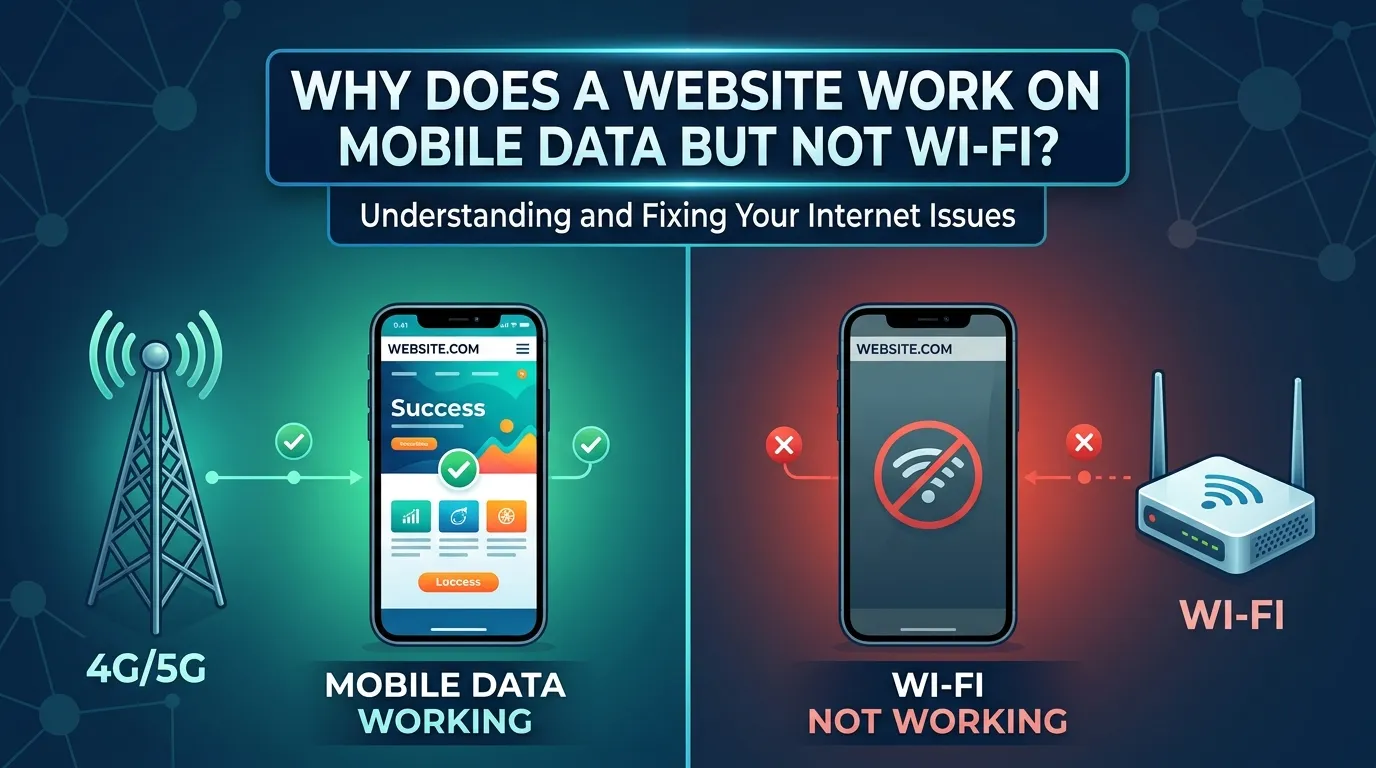
When the Same Website Behaves Differently on Two Connections
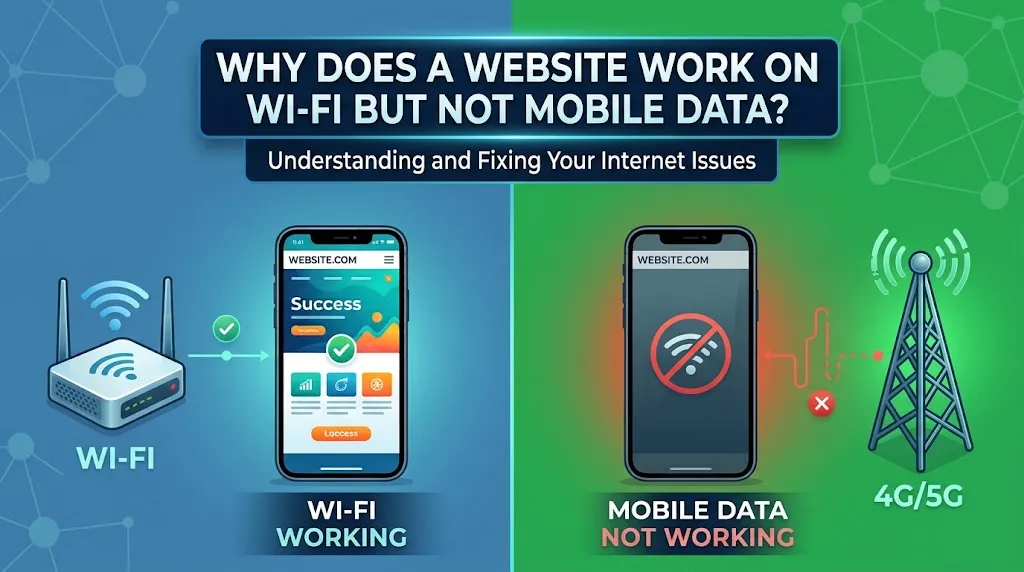
You pick up your phone, open a browser, and a website loads instantly over mobile data. Then you connect to Wi-Fi — same device, same browser, same URL — and the page times out or throws an error. The gap between "works" and "doesn't work" is actually your most useful diagnostic tool.
The fact that a site loads on cellular but not Wi-Fi tells you something important: the website itself is probably reachable. The failure is most likely happening somewhere between your Wi-Fi network and the open internet. That distinction matters, because chasing the wrong cause wastes time. A router setting is fixed differently from a DNS issue, which is fixed differently from an ISP-level problem.
Before changing any settings or restarting anything, gather a few quick observations. They'll tell you whether you're dealing with a device problem, a local network problem, an ISP problem, or something on the website's end.
Start With the Simplest Comparison Tests First
Move from broad to specific. Confirm exactly what you observed: verify the URL loads on mobile data, then switch to Wi-Fi and try again. If the failure is consistent, you have a reliable symptom to work with.
Next, test another device on the same Wi-Fi network. If the second device loads the site without trouble, the issue is confined to your first device — its browser cache, DNS settings, a VPN or proxy app, or a browser extension. If the second device also fails, the problem exists at the network level.
On whichever device is failing, try a different browser before touching network settings. Browsers maintain their own DNS caches and may apply independent DNS-over-HTTPS settings. A site that won't load in Chrome might load fine in Firefox or Safari, pointing toward a browser-specific issue rather than a network-wide one.
Then check whether other websites are affected. If only one or two sites fail while everything else loads normally, something is specifically blocking or misrouting those domains. If a broad range of sites fail on Wi-Fi but work on mobile data, the problem is more likely a misconfigured network setting, a broken DNS server, or a routing fault.
What Your Results Tell You So Far
- Every device on Wi-Fi fails, but mobile data works: The problem is at the network level — your router, DNS configuration, or ISP routing.
- Only one device fails on Wi-Fi: The problem is device-specific — check browser settings, VPN or proxy apps, and private DNS configuration.
- Only certain websites fail on Wi-Fi: Something is selectively filtering those domains — a router with parental controls, a blocking DNS resolver, or ISP-level filtering.
- The site fails on every network, including mobile data: The website itself may be blocking your IP or restricting access based on geography or server-side rules.
DNS: The Most Common Reason a Site Loads on LTE but Not Wi-Fi
DNS translates a website address like example.com into a numerical IP address. On mobile data, your carrier handles DNS automatically. On Wi-Fi, your router typically takes over — and if it's using a DNS server that blocks or can't resolve a particular domain, the website appears unreachable even though it's working fine.
DNS failures don't always produce obvious error messages. Instead of a clear "DNS resolution failed" notice, you might see a generic timeout, a "server not found" message, or a blank page. The browser simply gives up.
DNS issues can come from several places: your router might use an ISP-assigned DNS server that's experiencing problems, it might have a corrupted cached DNS record, or it might be running DNS filtering — intentionally or as a default feature you've never touched. Some routers ship with content filtering enabled out of the box, and some ISPs push filtered DNS configurations to home routers without making it obvious.
The quickest test is to temporarily switch your device's DNS to a public resolver like Google's 8.8.8.8 or Cloudflare's 1.1.1.1 directly in your Wi-Fi settings, bypassing whatever DNS your router assigns. If the site suddenly loads, DNS was the problem. For those comfortable with a command line, running nslookup example.com on both connections can show whether they resolve the same domain to the same IP address. A different result — or no result on Wi-Fi — confirms a DNS mismatch.
Router Settings That Silently Block Specific Websites
Most modern consumer routers ship with access control and filtering features, some active by default. When a site loads on mobile data but fails on Wi-Fi and switching DNS didn't fix it, the router deserves a close look.
Parental controls are the most common hidden culprit. Many routers include built-in content filtering that categorizes and blocks websites by type — social media, gaming, streaming, and so on. The failure looks exactly like a DNS problem because the router may simply not respond to the request rather than serving a block page.
Access control lists are another possibility. Some routers restrict specific devices from certain websites based on MAC address. If your device was previously added to a restriction rule, it applies silently every time you connect — and because it's device-specific, other devices on the same network won't be affected, making it look like a device-level issue when it's actually a router-level one.
How to Check What Your Router Is Actually Doing
Log into your router's administration panel — typically accessible by typing 192.168.1.1 or 192.168.0.1 into a browser while connected. Look for any section labeled parental controls, content filtering, access restrictions, website blocking, or traffic management. If you find anything, check whether the failing domain or category is listed before changing anything else.
Some routers log blocked requests, which can immediately confirm the problem. It's also worth checking whether your router uses a third-party DNS filtering service at the firmware level. Services like OpenDNS or CleanBrowsing can be configured directly into a router's WAN DNS settings, applying category-based filtering to every device on the network. If the router was provided by an ISP or was secondhand, the WAN DNS settings may reveal a filtering service address rather than a standard resolver.
IPv6, Captive Portals, and Less Obvious Network-Level Problems
Not every Wi-Fi failure traces back to DNS or router filtering. A handful of less intuitive conditions can produce identical symptoms.
IPv6 misconfiguration is a genuine source of this problem in some environments. When a device connects to a Wi-Fi network that advertises IPv6 support but has a broken path to the internet, the device may attempt to reach a site via IPv6 first — as modern operating systems prefer it — and fail silently without falling back to IPv4. Mobile carriers often handle IPv6 more reliably, which is why the same site loads over LTE. Temporarily disabling IPv6 in your device's network settings can confirm whether this is the cause.
Captive portal interference is another edge case. Some Wi-Fi networks use a captive portal that intercepts web traffic until the user authenticates. If that portal is active but not displaying correctly, or if authentication has partially expired, the network may appear connected while selectively failing on certain sites. HTTPS-only sites are especially vulnerable, because a captive portal redirect can't intercept encrypted traffic, leaving the connection appearing to hang with no visible explanation.
When the Wi-Fi Network Has a Routing Problem Upstream
Sometimes the failure is neither on your device nor in your router but in the path your ISP uses to reach certain destinations. Internet traffic travels through multiple network handoffs, and if one develops a fault, specific destinations become unreachable while everything else works normally. This can look suspiciously like a targeted block or a device misconfiguration.
A quick way to probe this is to try accessing the failing site through a VPN. If the site loads immediately when your traffic exits through a different network path, the problem is almost certainly a routing fault or ISP-level restriction — not your device, browser, or router.
- Site loads through a VPN but not directly on Wi-Fi: Routing fault or ISP-level filtering — your local setup is functioning correctly.
- Site fails even through a VPN on Wi-Fi: The issue is more likely local to your device or network configuration.
- Site loads after disabling IPv6 on your device: Your Wi-Fi network is advertising IPv6 support it cannot reliably deliver.
- Site loads after properly authenticating a captive portal: The network's authentication layer was intercepting requests.
Fixing the Right Thing the First Time
The reason this problem catches people off guard is that the surface symptom looks the same regardless of whether the cause is a corrupted DNS cache, a router content filter, a broken IPv6 path, or an ISP routing fault. The browser just shows a timeout or error page. That's why the method matters more than any individual fix.
Working through comparison tests first — other devices, other browsers, other websites — costs almost no time and immediately narrows the problem to a layer you can address. Testing DNS by switching to a public resolver like Cloudflare's 1.1.1.1 takes under a minute and confirms or eliminates the most common cause in one step. Reviewing your router's filtering and access control settings takes only slightly longer. Running a quick check through a VPN tells you whether the problem lives on your local network or somewhere upstream.
It's also worth understanding when a problem is yours to solve and when it isn't. If the site loads through a VPN but not through your ISP's direct path, the fault lies upstream — contacting your provider or checking their status through a service like Downdetector is the right next move, not reconfiguring your home network. If the site loads on every device except one, the fix belongs in that device's settings, not your router.
Most cases resolve at one of three levels: the device, the router, or the DNS configuration. The less common causes — IPv6 mismatches, captive portal interference, upstream routing faults — follow the same diagnostic logic. Once you understand what each layer does and how to test it independently, the pattern becomes clear quickly. The gap between "works" and "doesn't work" stops being a source of frustration and starts being the most useful piece of information you have.
Follow the signal, test one layer at a time, and you'll find the answer — usually faster than you expected.