Why Does a Website Say "Not Secure" Even When It Uses HTTPS?
HTTPS Is Present, But the Browser Still Complains — Here's Why
You look at the address bar and the URL clearly starts with https://. Maybe there's even a padlock icon sitting right there. So why does the browser still show a "Not Secure" warning? For both visitors and site owners, it creates genuine confusion.
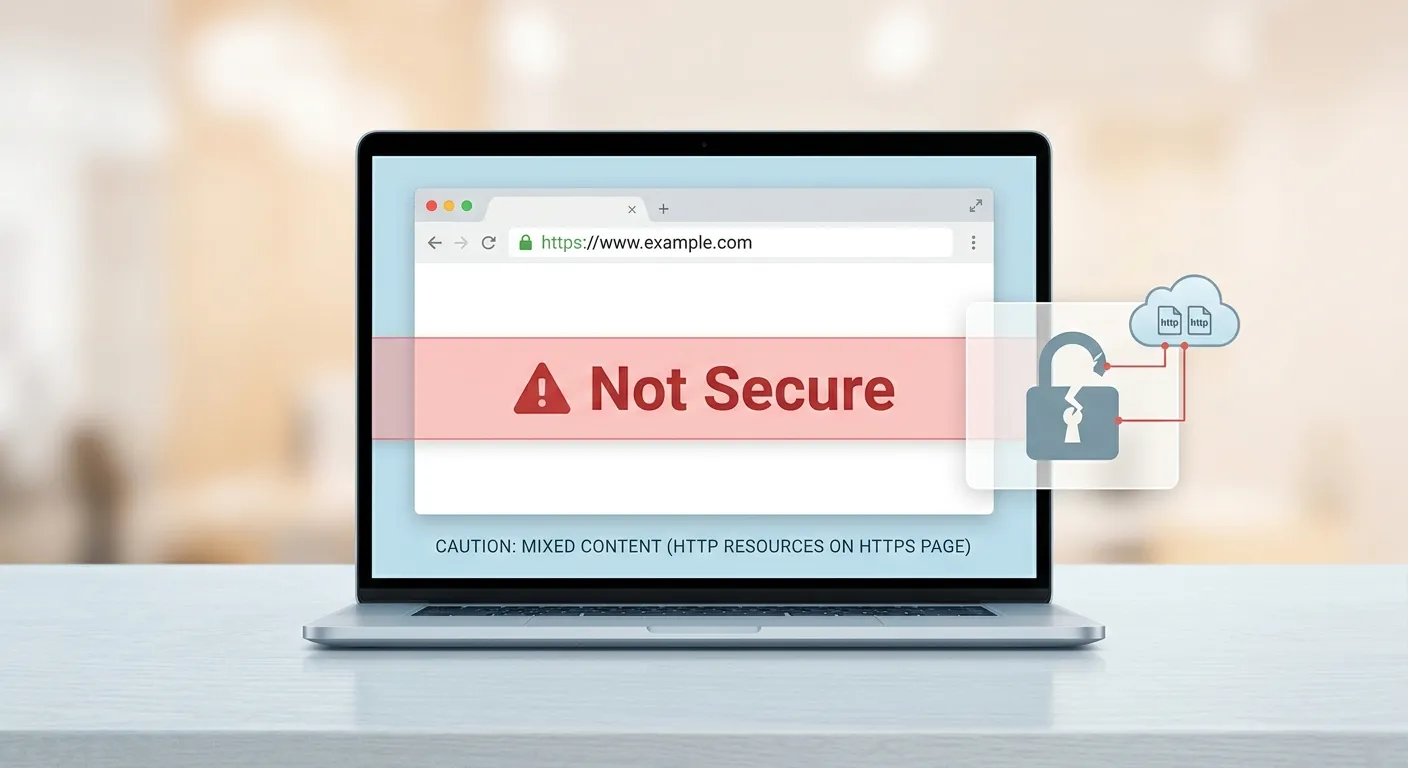
The short answer is that HTTPS alone does not guarantee every resource on a webpage is delivered securely. The padlock represents a secure connection between your device and the server — it does not certify that every image, script, or stylesheet is also traveling over that same secure channel. When something breaks that chain, browsers flag it.
There's also a second, separate reason a website says not secure despite HTTPS being present: the SSL certificate itself might be expired, misconfigured, issued for the wrong domain, or not trusted by the browser at all. The cause determines the fix, and the experience differs depending on whether you're a visitor encountering a warning or a site owner troubleshooting why your SSL certificate isn't working as expected.
What HTTPS and SSL Certificates Actually Do — and What They Don't
HTTPS encrypts data transmitted between a browser and a web server using TLS (Transport Layer Security). When a connection is established, the server presents a certificate that proves its identity and enables that encrypted channel. If you submit a form, log in, or make a purchase on an HTTPS page, the data is encrypted and cannot be easily intercepted in transit.
What HTTPS does not do is verify that a website is legitimate, honest, or free of malware. A phishing site can have a perfectly valid SSL certificate. The certificate proves the connection is encrypted; it says nothing about the intentions of whoever owns the server. A lot of users assume the padlock means "safe to use." It means "encrypted in transit" — useful, but not the whole picture.
This helps clarify why an ssl certificate valid but not secure message isn't necessarily a contradiction. The certificate might be perfectly legitimate, but something else on the page is undermining the secure connection.
Mixed Content: The Most Common Reason an HTTPS Page Shows a Warning
The most frequent cause of a missing padlock on an HTTPS site is mixed content. This happens when a page loads over HTTPS but some of its resources are still requested over plain HTTP. Think of it this way: your webpage is a house with a secure front door, but one of the windows has been left wide open.
Practically speaking, mixed content happens when a page contains things like:
- Images loaded from an http:// URL rather than https://
- JavaScript files requested over HTTP
- CSS stylesheets pulled from an insecure source
- Embedded iframes, fonts, or media pointing to HTTP origins
Browsers treat these differently depending on severity. Passive mixed content — typically images and media — might result in a warning or a downgraded padlock. Active mixed content — scripts and stylesheets — is more serious because it can potentially be modified in transit to attack the page or its visitors. Modern browsers now block most active mixed content by default, which is why the insecure content problem has become harder to miss.
For site owners who've recently migrated from HTTP to HTTPS, this is often exactly what's happening. The site's own URLs were updated, but older content — blog post images, embedded videos, links to external resources — still references old HTTP paths. The migration was done correctly; the cleanup wasn't finished.

When the SSL Certificate Itself Is the Problem
Mixed content is the most common culprit, but a separate category of HTTPS failures has nothing to do with what's on the page — it involves the certificate itself. When a browser encounters a certificate it cannot validate, the warning is considerably more alarming than a downgraded padlock. You'll typically see a full-page error: "Your connection is not private," with options to go back or proceed at your own risk.
Expired Certificates
SSL certificates are issued with an expiration date, and when that date passes, the browser stops trusting the certificate — regardless of whether the site itself is legitimate. The certificate has simply aged out of validity, and the browser treats it the same as any other untrustworthy certificate. This happens more often than you'd expect, even on professionally managed websites. A renewal can slip through the cracks when teams change, automated renewal processes fail quietly, or reminders go to inboxes nobody monitors.
Domain Mismatch Errors
A certificate is issued to a specific domain. If the domain in the address bar doesn't match what the certificate was issued for, the browser flags it immediately. This can happen when a site migrates to a new domain without updating the certificate, when a subdomain is set up without being included in the certificate's coverage, or when the certificate covers the bare domain but not the www version, or vice versa. The browser's error message will often explicitly tell you what domain the certificate covers and what you're actually visiting — making it one of the easier problems to diagnose.
Untrusted or Self-Signed Certificates
Browsers maintain a list of trusted certificate authorities permitted to issue valid SSL certificates. When a certificate comes from an unrecognized authority — or is self-signed — that chain of trust breaks. Self-signed certificates are common in development environments and internal tools, but on a public-facing website, they produce exactly the same hard warning as an expired or mismatched certificate. The encryption might be technically functional, but unverifiable identity is treated as a trust failure.
Why the Browser Warning Looks Different Depending on the Cause
Not all "Not Secure" warnings look the same. A page with passive mixed content might show a padlock with a small warning icon, or simply no padlock, without any prominent text. The connection retains some HTTPS protection, but it's degraded. Most users won't notice unless they look closely.
A page with active mixed content blocked by the browser will often show a "Not Secure" text label in the address bar, sometimes in red. In some cases, the page's functionality breaks because the blocked script or stylesheet never loaded — creating a different problem where the site doesn't work and the visitor doesn't understand why.
A full certificate failure produces the most dramatic response: a dedicated error page that prevents access unless the visitor actively chooses to override it. Understanding where your site falls on this spectrum is the first step toward knowing how urgently the issue needs to be resolved.
How Search Engines and User Trust Factor In
The "Not Secure" warning carries consequences beyond immediate user experience. Google has used HTTPS as a ranking signal for years — a modest factor compared to content quality, but one of the easiest to get right. More significantly, security indicators influence user decisions at high-stakes moments: checkout pages, login forms, contact forms where personal information is being submitted. When the address bar signals something is wrong at exactly that moment, abandonment rates climb. Visitors don't need to understand the technical details; they see that something looks wrong and act accordingly.
For site owners managing any transactional relationship with visitors — collecting email addresses, processing payments, or building a returning audience — the not-secure label is both a visibility problem and a credibility problem simultaneously.
Fixing the Problem: What to Actually Do When the Warning Appears
If the site uses HTTPS but the padlock is missing or degraded, mixed content is the first place to look. Open the browser's developer tools — in Chrome or Firefox, the Console and Security tabs will identify exactly which resources are loading over HTTP. In most cases, it's a handful of image paths or an old embedded widget not updated during migration. Updating those references to HTTPS equivalents resolves the warning entirely. Tools like Why No Padlock can surface mixed content issues quickly without requiring server access.
If the problem is certificate-related, the browser's error page is often the most useful starting point — it will identify whether the issue is expiration, a domain mismatch, or a trust failure. Renewing an expired certificate through your hosting provider is typically a quick process, and most modern hosting environments offer automated renewal through Let's Encrypt, eliminating the risk of quiet expiry in the future. Domain mismatch errors require either reissuing the certificate to cover the correct domain or adjusting how the server routes traffic.
For sites running on content management systems like WordPress, plugins exist specifically to detect and rewrite mixed content URLs across the database — useful when the volume of affected content makes manual correction impractical. After any fix, clearing the browser cache and running the page through an SSL Labs server test will confirm whether the issue has been fully resolved or whether something has been missed.
The Padlock Means More Than It Looks Like It Does
Visitors make trust decisions based on the address bar, often in seconds and often without consciously realizing it. The padlock — or its absence — has become a shorthand signal for whether a website is worth engaging with, even among users who couldn't explain what TLS stands for.
For site owners, the lesson is straightforward: the presence of HTTPS is a starting point, not a finish line. Getting a certificate installed is step one. Keeping it current, ensuring it covers the right domains, and making certain every resource on every page loads securely — that's the ongoing work that keeps the padlock clean. It's not complicated once you understand what the browser is actually checking, but it does require attention as sites grow, migrate, or accumulate years of content from an earlier era of the web.
When the warning appears, it's worth taking seriously. Every day the warning is visible is another day visitors quietly decide to look elsewhere. The fix is almost always within reach. The cost of leaving it unfixed, over time, is consistently higher than the effort it takes to address it.